Versace Order Not Updated: Check FashionReps Records
Marcus Delgado · Editor in ChiefMarcus Delgado is Editor in Chief, covering Air Jordan silhouette history, retail launch timing, size-run fit mapping, and final score calls. They buy at retail where possible and use buying agents otherwise, filming the unboxing and checking the box label against the size tag. Marcus sets the final hands-on score after each ten-day wear block, with testing including 20 km of city pavement and a flex-cycle stress test they conduct personally. They sign off on the comparison table against two prior-year equivalents, connecting fit judgments, wear records, and comparisons.
Introduction: Don't resubmit right away After submitting a Versace item on fashionreps, if the order status doesn't update immediately, the most important thing is to first confirm whether your action left a record, then decide whether to wait, provide additional info, or contact the purchasing platform. fashionreps' product pages handle the Buy action through the selected shopping agent, so the status on the product page, the agent platform's cart status, and the fi
Editor score 4.2 / 5
Introduction: Don't resubmit right away
After submitting a Versace item on fashionreps, if the order status doesn't update immediately, the most important thing is to first confirm whether your action left a record, then decide whether to wait, provide additional info, or contact the purchasing platform. fashionreps' product pages handle the Buy action through the selected shopping agent, so the status on the product page, the agent platform's cart status, and the final order status may not be the same field.
This article addresses only one issue: the order status not updating as expected after submitting a Versace item. After reading, you should be able to do three things: save traceable product and variant info, distinguish between status delay and incomplete submission, and avoid duplicate submissions or duplicate payments. This article does not apply to orders with clear refunds, cancellations, payment failures, or logistics anomalies; those should be routed to the corresponding payment, after-sales, or logistics processes. 🔎

The order status verification task this article addresses
First, write the issue as a verifiable record:
"I submitted a specific item and variant on the Versace product page on fashionreps, but the agent platform or order list did not show the expected status."
Don't just remember "I clicked buy." Record the product page name, product link, selected color or size, quantity, submission time, the shopping agent used, and the page message seen after submission. If any of these fields are missing, it will be hard to determine later whether it's a status delay, fields not saved, or the action wasn't completed at all.
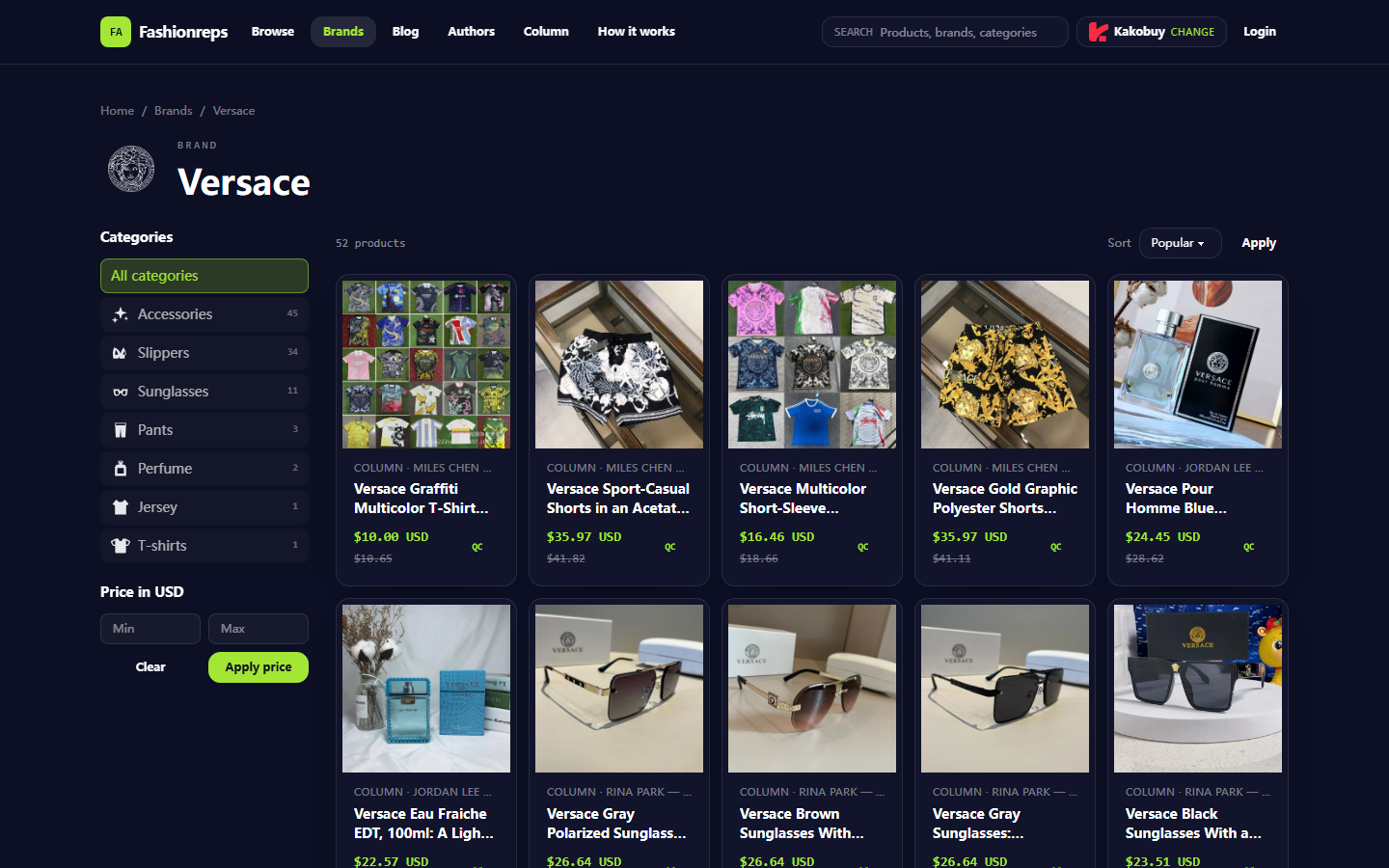
fashionreps' page identity is a product discovery and purchase entry point. The Versace brand catalog displayed on the page includes different categories such as clothing, fragrances, sunglasses, and footwear, and the page also offers shopping agent selection. Actual inventory, final price, payment result, and order status should be based on the selected shopping agent's page; do not treat the reference price in the brand catalog as a confirmed order amount.
Save the Versace product link, variants, and pre-submission page info
Before taking further action, save pre-submission evidence. It is recommended to keep the following:
- The full link and page title of the Versace item.
- Product category, e.g., T-shirt, shorts, fragrance, sunglasses, or slides.
- Color, size, capacity, or other variant fields; if there's no corresponding field, record the default option shown on the page.
- Quantity submitted, and whether the quantity was modified.
- The name of the shopping agent selected at the time.
- The reference price, currency, and page time shown on the product page.
- Screenshots before and after clicking Buy or submitting; the screenshots should not include private data beyond order number, address, phone, or payment information.
If the product page only shows catalog info and does not show enough variants or seller info to support a specific order, do not infer that an order has been created based on the page content. Instead, go back to the selected shopping agent and check for drafts, cart items, or pending confirmation records.
The purpose of pre-submission info is to establish a control group. Later, when you see status changes, you can determine whether the change comes from the product page, the cart, the order page, or an asynchronous sync on the agent platform, rather than jumping to conclusions based on a brief browser message.
Check the time, quantity, and status fields in the submission record
After entering the actual selected shopping agent, check in chronological order; do not click the submit button repeatedly:
- Open the cart, pending orders, or submission records and search for the Versace item name, cross-checking the product link if necessary.
- Compare the product name, variant, quantity, and amount with the pre-submission record.
- Check the record's creation time, update time, and current status. The time display should be based on the time zone actually shown on the page; do not convert it yourself and overwrite the original value.
- Check if there's any pending confirmation, pending payment, processing, needs additional info, or other clear prompt.
- Reload the page to confirm the record still exists, and keep screenshots of the status before and after refreshing.
If the record exists and fields match, but the status hasn't changed, note the observation time and avoid resubmitting within a short period. If the record exists but the quantity, variant, or amount doesn't match, don't pay; pause and verify at which step the change occurred.
If no record can be found at all, continue to check whether you're logged into a different account, switched shopping agents, entered the wrong site region, or only completed the product page redirect without confirming submission on the agent platform. Don't treat "page opened" as "order created."
Compare key differences among product page, cart, and order page
You can judge at three levels when verifying:
The product page answers "what did I see." This is suitable for verifying product name, category, visible variants, page reference price, and the selected agent entry.
The cart or submission record answers "did the action leave a record that can be processed further." This is suitable for verifying product link, quantity, variant, amount, and creation time.
The order page answers "has the platform converted the record into an order process." Here you look at order number, payment status, processing status, or fields requiring user input. Without an order number, don't assume payment has occurred; without a payment record, don't pay again.
Common differences include:
- The product page shows a reference price, while the cart shows a different currency or real-time amount.
- The product page title is short, while the cart uses the agent platform's own product name.
- The product page shows selectable sizes, but after submission the size field is empty or reverts to default.
- The cart has a record, but the order page hasn't generated an order number yet.
- The order page shows processing, while the product page still displays original catalog info.
These differences alone don't prove a platform malfunction. Only after saving time, page, and field comparisons can you further determine at which layer the issue lies. 🧾
Distinguish among status delay, missing fields, and incomplete submission
You can use the following criteria for initial classification:
Status delay: The cart or submission record exists, product, variant, and quantity basically match, the page has creation or update time, but the order status hasn't advanced yet. In this case, wait for a reasonable page refresh cycle, then read the record again; don't resubmit.
Missing fields: The record exists, but size, color, quantity, amount, or agent info differs from pre-submission. In this case, don't pay or continue confirming; save the differences and contact the actual shopping agent to ask whether it can be modified or whether the current record should be cancelled.
Incomplete submission: The product page redirected to the agent platform, but the agent platform has no cart, draft, submission record, or order record, and no clear success message. In this case, first confirm the account and agent selection, then perform one controlled operation; after the operation, save the result immediately. If still no record, stop trying further.
Payment unconfirmed: The page shows a payment button or pending payment status, but there is no clear payment success record. Don't pay again, and don't assume the order is confirmed just because the bank card or payment page has opened. Check the payment transaction, order number, and agent platform order status.
If the status message contradicts the order record, the order record that can be reopened and continuously displayed, and the official support response, should take precedence. Transient pop-ups, browser back pages, or one-time loading anomalies can only serve as clues, not as proof of completion.
Avoid duplicate submissions, duplicate payments, and duplicate customer service contacts
Before classifying the issue, set up a simple operational lock:
- For the same product link, same variant, same quantity, keep only one record to verify.
- Before checking the cart and order page, don't click Buy or submit again.
- Before confirming payment result, don't initiate payment again.
- Before contacting support, first organize complete evidence to avoid sending multiple contradictory messages about the same issue.
- Record the time and page status for each refresh or retry.
If a resubmission is necessary, first confirm that the old record truly doesn't exist and there's no pending payment, processing, or created order status. When resubmitting, do it only once, and immediately record the new submission time. If the old record appears later, stop further actions to avoid duplicate orders.
Don't "test" status changes by splitting orders, modifying quantities, or switching multiple agents. This increases the risk of duplicate orders, price changes, and inventory discrepancies, and makes it harder for support staff to determine the original action. ⏸️
Evidence package to compile when contacting official support
Contact the official support of the shopping agent that actually handles the order first, rather than only describing the status to the product catalog page. The evidence package should include:
- fashionreps product name, product link, and pre-submission screenshot.
- The selected shopping agent's name.
- Submission date and time, as well as the time zone shown on the page.
- Variant, quantity, and pre-submission reference amount.
- Screenshots of the cart, submission record, or order page on the agent platform.
- The current status text, order number, or clearly state "no record found."
- Steps already attempted, such as re-logging in, refreshing the order page, or checking the cart.
Before taking screenshots, redact name, address, phone, payment card number, full order number, and other unnecessary personal information. Keep only the parts that can determine product, variant, quantity, time, and status.
When describing the issue, use factual descriptions instead of conclusions. For example: "At a certain time, from the Versace product page on fashionreps, I entered the selected agent and submitted a quantity of one; the agent cart did not show that variant, and the order page had no new record." Don't write "the platform swallowed the order" or "the system must have failed" unless official records already support that conclusion.
Don't ask support staff to confirm inventory not provided, seller authenticity, final taxes, or customs clearance results. The product catalog, agent order, and destination country customs clearance belong to different stages and should be verified separately. 📩
Final action: Decide to wait, supplement operation, or pause order based on evidence
You can make three types of decisions based on evidence:
If the cart or order record exists, fields match, and the status is just temporarily not updated: Save the record, wait until the page shows again, then check; don't resubmit or pay. Suitable for those who have seen a stable record but aren't in a hurry to advance immediately.
If the record exists but fields are missing or inconsistent: Pause payment and confirmation, provide evidence to the actual shopping agent, and wait for their explanation on whether it can be modified, cancelled, or recreated. Suitable for those who find size, color, quantity, or amount anomalies.
If there is no record that can be reopened: After completing a check of account, agent, and page entry, perform only one controlled retry; if still no record, pause the order and contact official support. Suitable for those who cannot prove successful submission.
The direct savings from this verification plan are avoiding duplicate payment for a product, duplicate agent processing fees, or the communication cost of subsequent cancellation and refunds due to duplicate orders. The added cost is the need to save screenshots, record times, and wait for official status confirmation; this caution is more valuable for those unfamiliar with agent platform order processes, complex product variants, or higher-value orders.
Conditions under which continued operation is not recommended include: a pending payment or processing record already exists, payment result not yet confirmed, multiple similar orders for the same product, variants or quantities inconsistent with the original record, account identity cannot be confirmed, or support staff has not answered key differences. If any condition is met, keep existing records, pause clicking and payment, and wait for a verifiable next step.