Christian Louboutin Size Missing at Checkout
Marcus Delgado · Editor in ChiefMarcus Delgado is Editor in Chief, covering Air Jordan silhouette history, retail launch timing, size-run fit mapping, and final score calls. They buy at retail where possible and use buying agents otherwise, filming the unboxing and checking the box label against the size tag. Marcus sets the final hands-on score after each ten-day wear block, with testing including 20 km of city pavement and a flex-cycle stress test they conduct personally. They sign off on the comparison table against two prior-year equivalents, connecting fit judgments, wear records, and comparisons.
If you can select a size on the Christian Louboutin product page, but the size no longer appears once you enter the cart or checkout page, do not pay or repeatedly submit the same order. This only means the information between the product page and the subsequent order steps needs to be rechecked; it does not prove that fashion-reps or the shopping agent platform has malfunctioned. 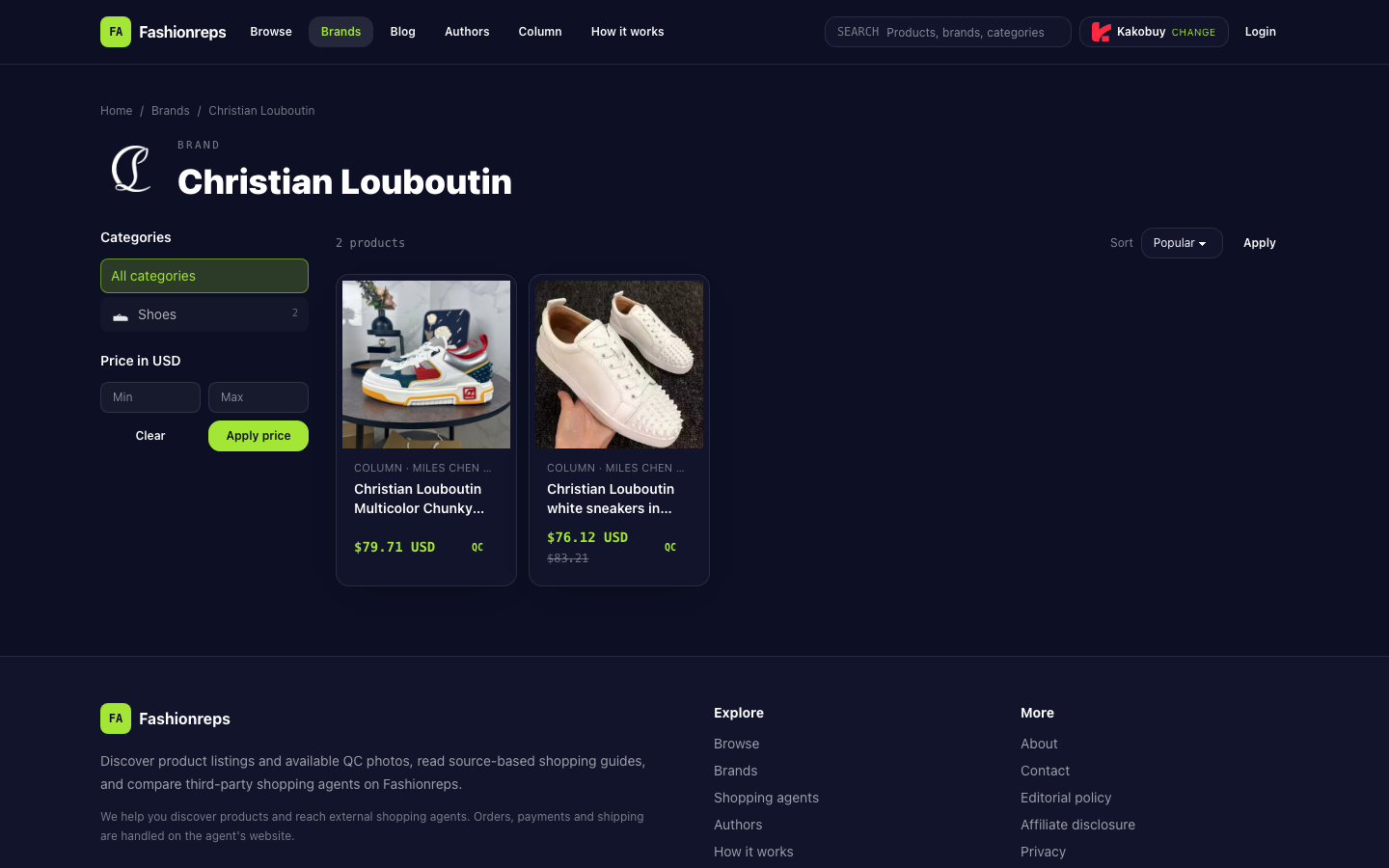
Editor score 4.2 / 5
If you can select a size on the Christian Louboutin product page, but the size no longer appears once you enter the cart or checkout page, do not pay or repeatedly submit the same order. This only means the information between the product page and the subsequent order steps needs to be rechecked; it does not prove that fashion-reps or the shopping agent platform has malfunctioned.

First confirm which situation you are in
You need to distinguish between "size not displayed" and "size not transmitted." If the cart or checkout page still shows the product but lacks a size field, it may be incomplete page display; if the size field exists but is empty, becomes a default option, or does not match the selection from the product page, it is more likely a variant information transmission error.
Also confirm at which step the issue occurs:
- After selecting the size on the product page, it resets before adding to cart.
- Adding to cart succeeds, but there is no size in the cart.
- The cart still has the size, but it disappears after entering the checkout page.
- The checkout page shows the size, but the product title, color, or style no longer corresponds.
Do not judge whether the selection is valid based solely on the product name on the page. The size must be checked together with the specific color, style, and product link.
Step 1: Save the product page and variant selection
Before redoing anything, save a screenshot of the product page and record the following:
- Full product title
- Product link
- Selected color
- Selected size
- Style code or product number shown on the page, if available
- Screenshot time
The screenshot should include both product identity information and the selected variant, avoiding capturing only the size dropdown. If the selection disappears after the page refreshes, do not treat the refreshed page as original evidence.
Fashionreps' Christian Louboutin brand page currently displays two products with reference prices; this catalog information can only be used to confirm the product entry and page identity, not to prove that a certain size has been successfully written into the cart, nor to prove inventory, shipping costs, or checkout prices.
Step 2: Compare the cart item by item
Once in the cart, do not click checkout immediately. First compare the cart contents with the product page screenshot you saved:
- Does the product title still correspond to the same style?
- Does the product link or product number still correspond to the original page?
- Is the color consistent?
- Does the size field exist, and is its value empty or changed to a default?
- Has the quantity changed?
- Does the page show a prompt to reselect the variant?
If the size field disappears, but the color, title, or style code also changes, pause and do not continue with a guessed size. If the cart allows editing variants, you can return to the same product page to reselect, and take a new screenshot after adding to cart again; if the page does not clearly show the current variant, do not treat this action as fixed.
Step 3: Check whether the checkout page still corresponds to the same variant
If the size in the cart seems correct, proceed to the checkout page and recheck the same set of information. Focus on the checkout summary, order notes area, and product details, not just the total price.
You can use the following checking order:
- First look at the product title and style code.
- Then the color.
- Finally the size and its quantity.
- Check if the checkout page merges the product into an indistinguishable generic name.
- See if there is a field for adding size or variant notes.
If the checkout page has no size field, you cannot infer that the size was preserved based only on the product thumbnail or title. If the page allows filling in order notes, you can record the product link, color, and size, but whether the notes will actually be read by the order system needs to be confirmed with the official support channel of the target shopping agent. Do not treat notes as proof that the system has locked the variant.
Keep the issue chain with four screenshots
To help support staff determine at which step the size was lost, it is recommended to save four types of screenshots in chronological order:
- Product page: showing product title, link or product number, and selected color and size.
- Page after adding to cart: showing product details and variant information.
- Cart page: showing whether the size field exists and its current value.
- Checkout page: showing whether the size is retained in the final order summary.
Each screenshot should preserve chronological order, and file names can use simple labels like "product page," "cart," "checkout." Do not crop out areas that confirm product identity, and do not mix screenshots of different products or sizes.
Submit pre-order issues through the official support channel
Fashionreps page states that product entries redirect to the shopping agent selected by the user, and that orders, payments, and shipping are handled by the agent's website. Therefore, when the size disappears at the cart or checkout stage, you should submit the issue through the official support channel of the actual shopping agent website, not treat the page display as an order status confirmed by Fashionreps.
When submitting, provide all at once:
- Product link
- Product title or style code
- Color and target size
- The specific step where the problem occurs
- Screenshots in chronological order
- Abnormal content shown on the cart or checkout page
- Whether an order has been created or paid
The problem description should directly ask: Does the order system currently record the specified color and size, and which field should be used to verify before confirmation? If support cannot confirm the specific variant, do not choose a similar size as a substitute.
Stop operating when these situations occur
If any of the following occurs, pause payment and repeated submissions:
- The checkout page has no size and no verifiable variant details.
- The size does not match the product page selection.
- The product title, color, or style code does not match the original product.
- The page asks to reselect a variant, but after reselecting, it still cannot be confirmed in the cart.
- Support has not confirmed the actual order record.
- The page shows submission success, but you cannot confirm whether an order was generated.
Especially do not click the submit button repeatedly, nor create the same order multiple times across different pages. When the result is unclear, first save the current page and order status, then wait for a clear response from the official support channel. Only proceed with payment or continue to subsequent steps when the product identity, color, size, and order status all correspond.